GornikDaze
Well-Known Member
- Joined
- 9 Jul 2012
- Messages
- 11,145
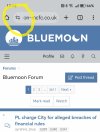
Anyone else getting this pop up on every page refresh?
Edit: all sorted now :)
Edit: all sorted now :)
Last edited:

How did you sort it?Anyone else getting this pop up on every page refresh?
Edit: all sorted now :)
It just sorted itself - was happening from about 07:30 and now it’s fineHow did you sort it?
It's still popping up on my phone every few seconds.
Anyone else getting this pop up on every page refresh?
Edit: all sorted now :)
Have you tried clearing your cookies for this site?Yep, it's driving me mad, every time you turn a page :(
What browser are you using mate?It’s happening to me now every page refresh. How do I sort… explain it like you would to a four year old!
Safari I cleared cookies etc last night.. it seems to be ok now?What browser are you using mate?
To follow up on this, for Chrome on Android (presumably Chrome on iPhone as well, but not checked):-I've deleted just the Bluemoon cookies which resolved it.
If using Chrome (on desktop, not tried on the phone):-
- On your computer, open Chrome.
- At the top right, select Settings .
- Select Privacy and security on the left. Click Third-party cookies.
- Select See all site data and permissions.
- At the top right, search for the website's name.
- To the right of the site, select Delete .
- To confirm, select Delete.
I've deleted just the Bluemoon cookies which resolved it.
If using Chrome (on desktop, not tried on the phone):-
- On your computer, open Chrome.
- At the top right, select Settings .
- Select Privacy and security on the left. Click Third-party cookies.
- Select See all site data and permissions.
- At the top right, search for the website's name.
- To the right of the site, select Delete .
- To confirm, select Delete.